A two-session hands-on tutorial: MOSAIC and SHaSTAIEEE SMC 2026 · Bellevue, WA
iHuman Lab · Oklahoma State University
Human in the Loop Systems Lab (HILS Lab) · University at Buffalo
October 4, 2026
Two hands-on sessions, back to back, in the same room.
8:30–10:30 AM Session 1 · MOSAIC
A configurable testbed for human–AI teaming. Play a search-and-rescue mission in your browser, then change the task, the AI teammate and the sensing.
11:00 AM–1:00 PM Session 2 · SHaSTA
A simulator for human–swarm teaming. Put a human in the loop with a swarm, and log what they do on one clock.
Evergreen C Where
@Hyatt_Meeting Wi-Fi network
SMC26 Wi-Fi password
Session 1 · 8:30–10:30 AM
MOSAIC
Modular System for Adaptive Human–AI Collaboration
A configurable testbed for human–AI teaming · github.com/iHuman-Lab/mosaic
We study how people and intelligent systems work together.

Hemanth Manjunatha Principal Investigator

Elahe Oveisi PhD Candidate

Bennett Kwaku Dogbey PhD Student
Our work spans brain–computer interfaces, human–robot interaction, human-AI interaction, and cognitive augmentation.
When an AI teammate advises people in dynamic, high-stakes tasks, researchers ask questions like these:
Trust and reliance
When do people follow AI advice, and when is that reliance appropriate?
Decisions under pressure
How do uncertainty and time constraints affect reliance?
Situation awareness
What happens when the person and AI have access to different information?
Cognitive state
How does AI advice affect attention and workload?
AI teammate design
Which teammate behaviors and communication strategies improve team performance?
Adaptive assistance
When should assistance change with task demands or human performance?
Answering these questions requires observing the interaction as it unfolds over time.
That takes four capabilities in one experiment. Existing tools rarely offer all four together.
01
Interactive decision making
People make a sequence of decisions, and each outcome changes what happens next.
03
Configurable task conditions
Researchers need to vary information access, uncertainty, time pressure, and the consequences of mistakes.
02
A customizable AI teammate
Researchers need to vary what the AI knows, how reliable it is, and when and how it communicates.
04
Synchronized data
Task events, human actions, AI advice, physiological signals, and sensor measurements must share a common timeline.
MOSAIC is a modular testbed for human–AI teaming research. Configure its components for each study.
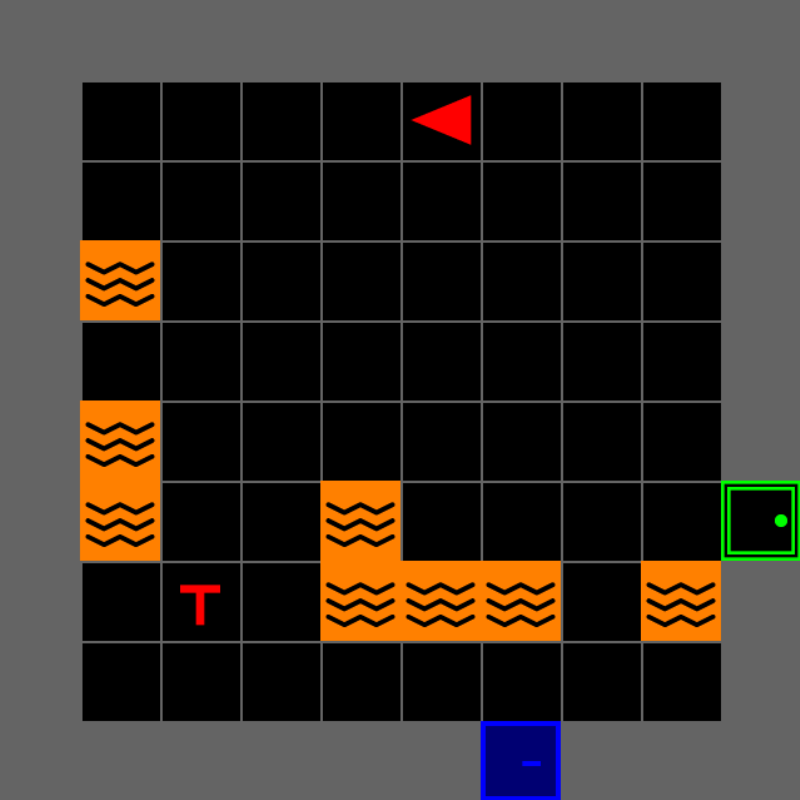
01
Interactive task
Search and rescue, one decision at a time
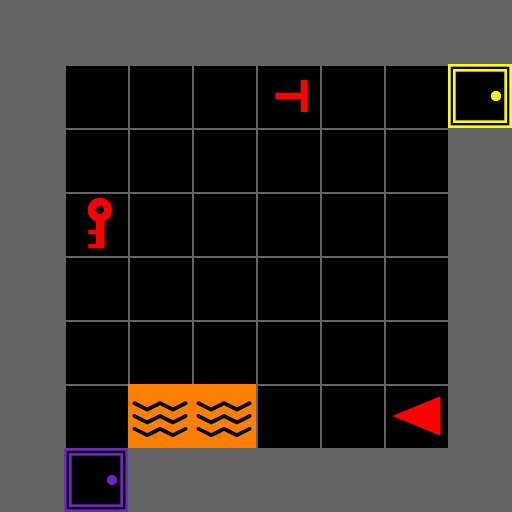
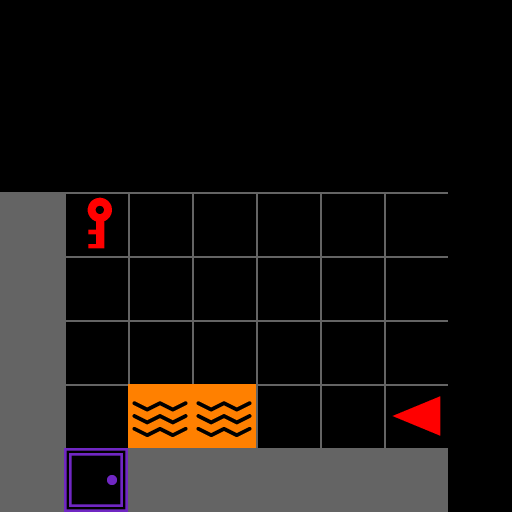
03
Configurable conditions
Map, view, timing, and scoring per study
MOSAIC
modular · configurable
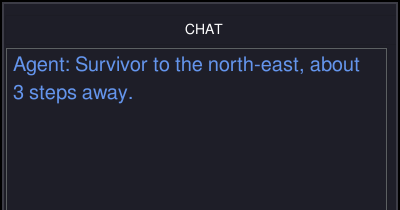
02
Customizable AI teammate
Scripted or LLM, with behavior you set
04
Synchronized data
Actions, advice, and signals on one clock
MOSAIC lets researchers vary the task and AI teammate, then record the interaction.
Each part is a separate module: the participant acts on the task, the AI teammate advises from task context, and LSL aligns every stream into one session record.
Human participant
Observes, decides, and acts.
actions
observations
MOSAIC task
Runs the task and the human-facing interface.
task context
advice
AI teammate
Interprets task context and provides advice.
physiological signals
task and interaction stream
Study sensors
Physiological data: EEG, eye tracking, pupil diameter
Time-stamped stream
Lab Streaming Layer (LSL)
Aligns streams on a shared clock
Synchronized record
Session data
Ready for analysis and replay

Mission
Search a multiroom building and rescue the real victims.
Real victims and decoys look alike, so an AI teammate’s advice can help or mislead.
Part Three plays the mission.
Search and rescue provides a controlled but consequential setting for studying human–AI decisions.
At every decision, the participant can act alone or ask for advice.
next decision
1 Observe
Read the room and the mission state.
2 Decide
Act alone, or ask the AI teammate.
act alone
3 Act
The participant always chooses the final action.
4 Outcome
The environment updates and the score changes.
Optional advice path
ask
use or ignore
Request advice
MOSAIC sends task context to the AI teammate.
advice
Evaluate advice
Compare it with what the participant can see.
Recorded throughout Task state · advice request · AI response · participant action · outcome
The central question is when and how AI advice changes human decisions.
Part Two
Open the Notebook
Nothing to install: everything runs in your browser
Why Open Experience Configure

Tutorial notebook On the tutorial server: the whole tutorial, run in your browser Sign in with your password, then open 02_mosaic_human_ai.ipynb jupyter.ihuman-lab.work
Four steps, and nothing to install.
1 Go to the server
Scan the code on the last slide, or open jupyter.ihuman-lab.work
2 Sign in
With the password you were given
3 Open the notebook
02_mosaic_human_ai.ipynb, in the file list on the left
4 Pick the kernel
Python (smc), at the top right of the notebook
Notebook 02_mosaic_human_ai.ipynb: the whole tutorial, in eight steps
Game live_play.py shows the game in your browser and takes your keys
Settings config.yaml: the task as a text file
Recording lsl_tools.py: game state and gaze into one file
The top right says Python (smc). Run each cell with Shift+Enter, from the top.
Prefer your own laptop? The appendix has the install, in one slide.
The task is a text file. Run Step 1 and MOSAIC builds it.
Change a number in the file, run again, and you have a different task.
Confirm
The kernel says Python (smc)
Step 1 printed game config: and mission: pick up all 8 victims
No red error text under any cell
You can scroll on to Step 2
| Symptom | Recovery |
|---|---|
No module named 'mosaic' |
Wrong kernel: pick Python (smc) at the top right |
No module named 'live_play' |
live_play.py is not in the notebook’s folder |
| The picture does not move | Click the picture once, then press the keys |
| A blank picture | Run the cell again and wait a second |
| The page asks you to sign in again | Sign in; your work is kept |
| The server does not open | Ask a helper; share a neighbor’s screen meanwhile |
Everyone with a level built is ready for Part Three.
Part Three
Experience the SAR Mission
Play one mission in the notebook and learn to read the screen
Why Open Experience Configure
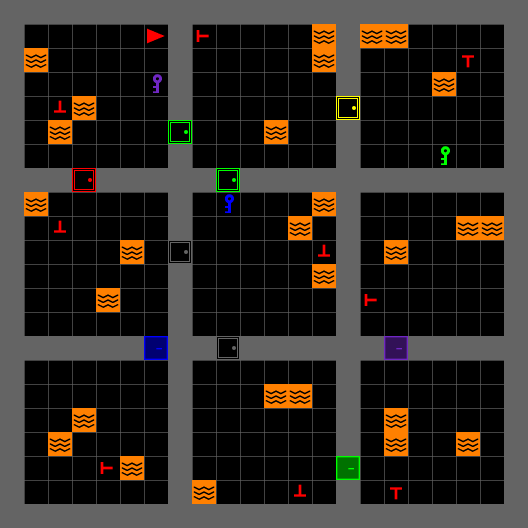
Explore, tell real victims from decoys, and rescue them before time runs out.
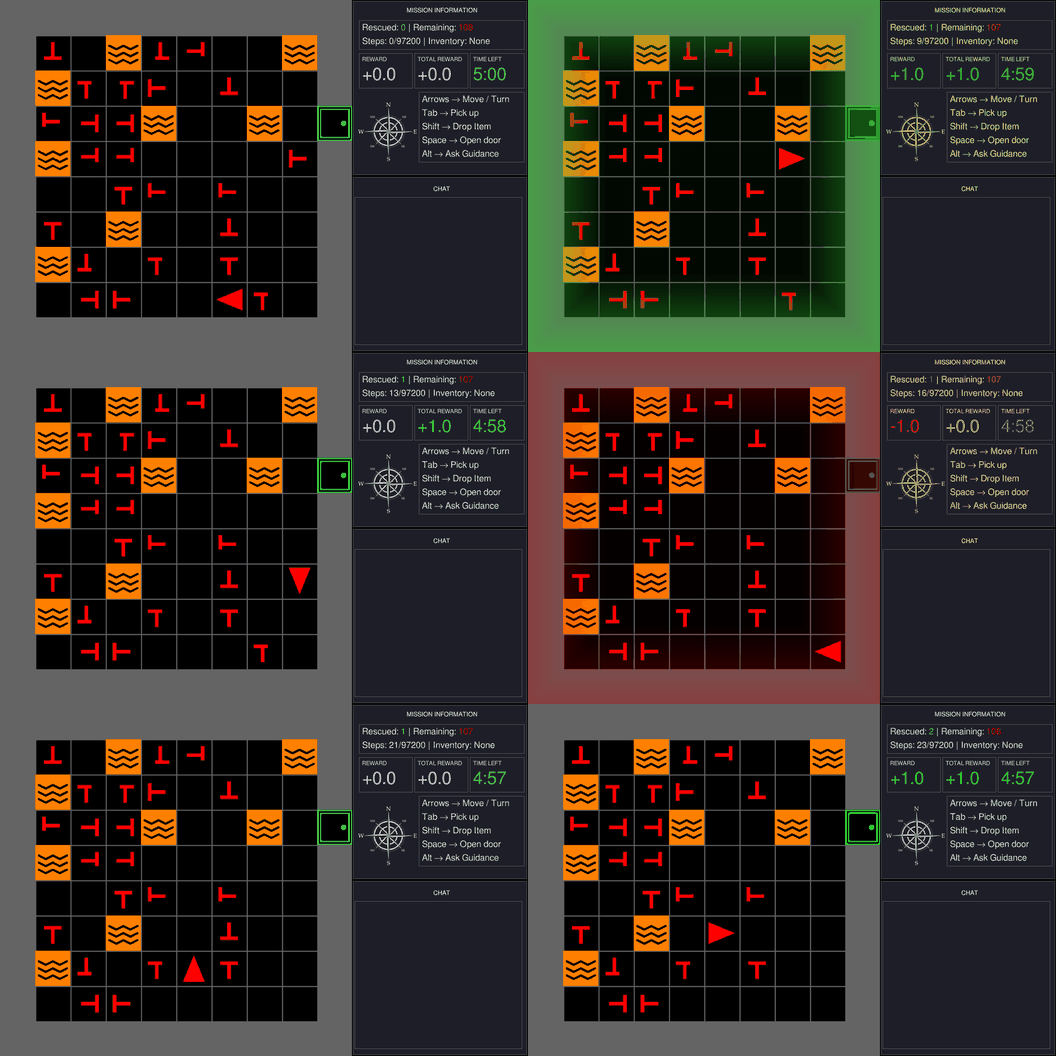
Explore
Move room to room. A locked door needs the key of the same color.
Identify
Both are red T shapes. A real victim’s stem is centered; a decoy’s is off-center.
Decide
A real victim earns a point, a decoy costs one, and the clock keeps running.
Every choice has a consequence you can see and score.
What each tile means, and where to read the mission.
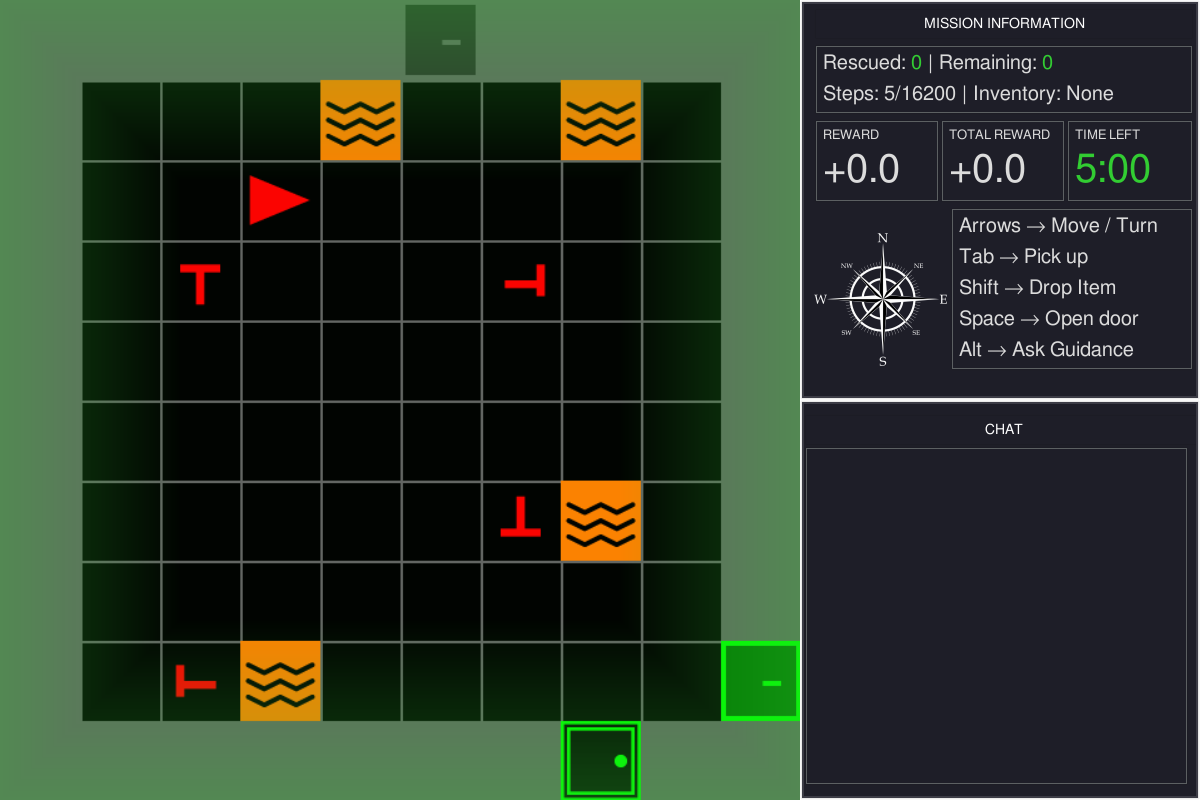
Game viewport — the green flash is rescue feedback
Information panel — rescued, remaining, steps, inventory
Mission status and score — reward and the clock
Controls, always on screen
Chat panel — where AI teammate advice arrives

![]()
You the red triangle
![]()
Victim rescue with Tab or E
![]()
Decoy costs a point
![]()
Lava ends the mission
![]()
Door Space opens it
![]()
Locked door needs the key of its color

![]()
Key Tab or E picks it up
Real victims and decoys are both red T shapes. Only real victims earn points.

REAL VICTIM DECOY
Symbols A real victim’s stem sits in the middle of the bar. A decoy’s is off-center.
Rescue Stand next to a victim, face it, and press Tab or E. The score updates at once.
Customize Part Four changes how many decoys there are, and what rescuing one costs.
+1.0 Real victim rescued
−1.0 Decoy rescued
Real victims earn points and decoys cost them. Telling them apart is where advice matters.
Four actions. In the browser, E also rescues and Q also asks for advice.
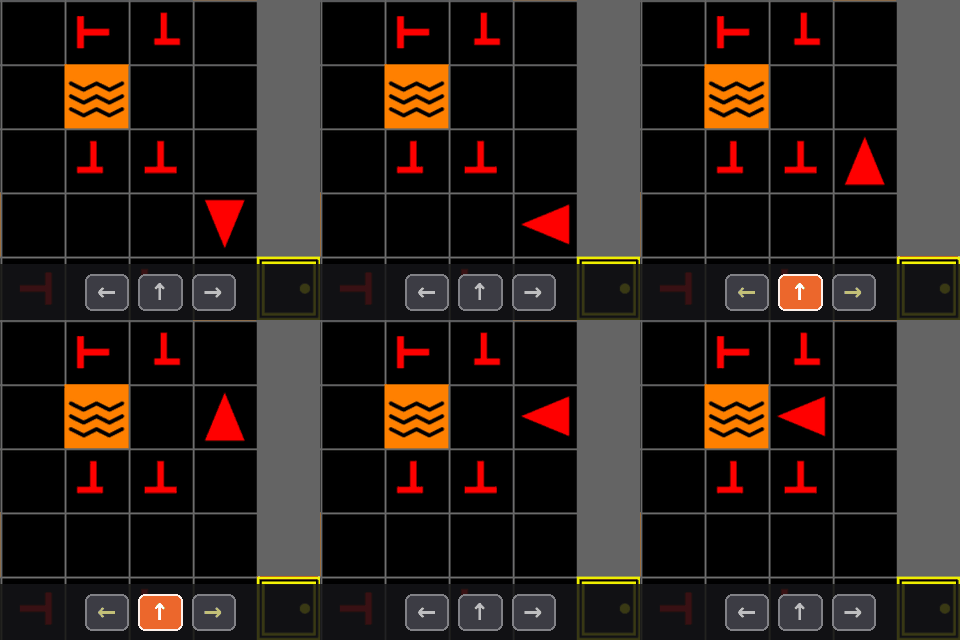
Navigate
↑ Move forward one tile
←→ Turn to face a new direction
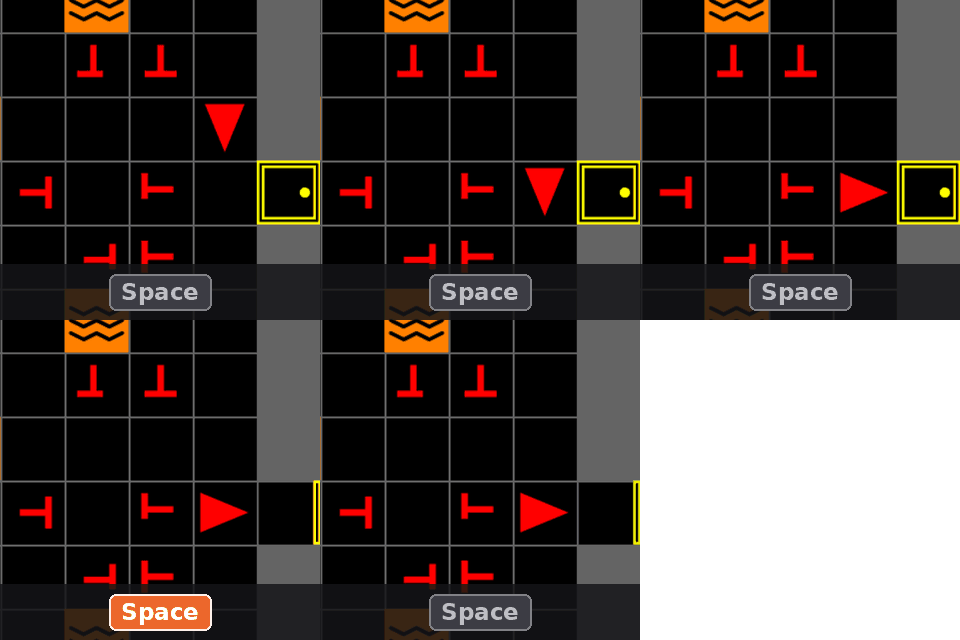
Open
Space Open the door you are facing
Locked doors open only while you carry the matching key.
Pick up or rescue
Tab E Take the key, or rescue the victim, you are facing
Request advice
Alt Q Ask the AI teammate
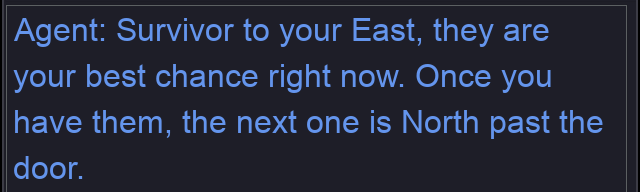
The reply appears in the chat panel. Today’s placeholder teammate answers “Currently, no commands are available.” Step 6 gives it one.
Open Step 2 of the notebook, the cell called Play it yourself
Run Shift+Enter, then click the picture so it receives your keys
Move Arrow keys turn and walk, Space opens a door, Tab or E rescues
Stop Press Stop to end the game and see your score
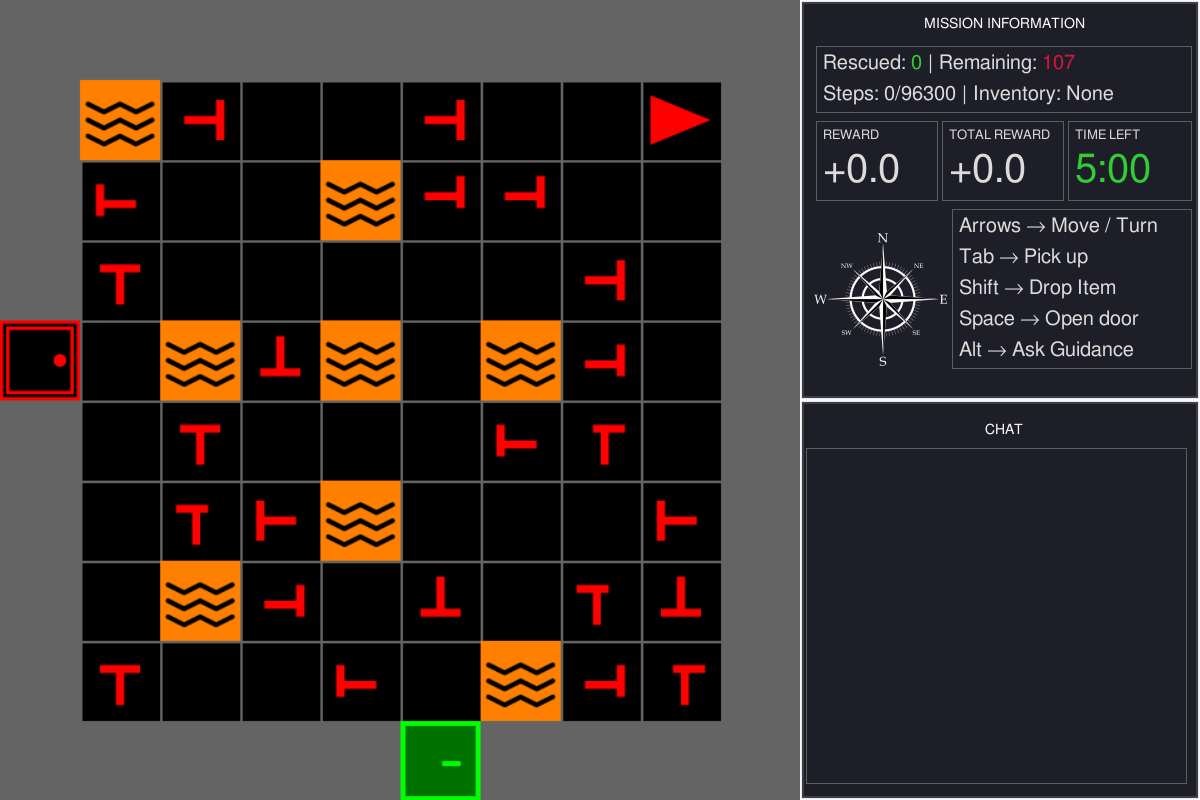
You should see something like this: the game on the left, the panels on the right.
You just played it by hand. The same game runs with nobody at the keyboard.
notebook · Step 2 a random agent plays one episode
Run Step 2, the cell called No human needed.
Would a learning agent change this loop?
What you get
1 The Gym API reset() and step(action), the interface RL libraries expect
2 The same task Same rooms, rules and rewards a human plays
3 No window Headless and fast: an episode takes a fraction of a second
A human, an AI teammate, or an RL agent can play: one task, one interface.
Break · 15 minutes
Take a Break
Next · Part Four: Configure MOSAIC
Part Four
Configure MOSAIC
The notebook in four parts: SAR, GUI, LLM, Sensing
Why Open Experience Configure

Tutorial notebook Steps 1 to 8: every change in this part is a cell you run Sign in with your password, then open 02_mosaic_human_ai.ipynb jupyter.ihuman-lab.work
Four parts you can change, built on Gymnasium, MiniGrid and BabyAI.
↑ ← → Space Tab Alt
Human participant
Watches the screen and presses keys.
keys
frames

4.2 GUI mosaic.gui
Game view, panels, chat, and feedback.
action
observation

4.1 SAR mosaic.sar
Rooms, victims, rules, and rewards.
physiological signals
context · advice
built on
4.4 Sensing lsl_tools.py
Gaze and EEG on the game’s clock, through LSL.
4.3 LLM mosaic.llm
Reads the task, replies in the chat.
obs, reward, terminated, truncated, info = env.step(action)
Gymnasium + MiniGrid
The step API and BabyAI’s room grids.
Map 4.1 SAR 4.2 GUI 4.3 LLM 4.4 Sensing
the notebook’s cells, assembled · Steps 1 to 7
env = build_sar_env(
screen_size=640, num_rows=2, num_cols=2, room_size=8,
victim_placer=VictimsAndDecoys(num_real_victims=2, num_decoys=3),
lava_placer=LavaPlacer(lava_per_room=1),
locked_room_placer=LockedRoomPlacer(locked_room_prob=0.35),
camera_strategy=AgentFOVCamera(),
action=RescueAction(rewards=RescueRewards(fake_victim=-5.0)),
)
teammate = StandInTeammate()
gui = SAREnvGUI(env, config=GAME, llm_client=teammate)
gui.user.on_step = record_step
play_mosaic(gui, on_stop=finish)4.1 SAR
The building, what fills it, the camera, the rewards
4.2 GUI
The participant’s window
4.3 LLM
Who answers Q
4.4 Sensing
What every step records
Map 4.1 SAR 4.2 GUI 4.3 LLM 4.4 Sensing
build_sar_env builds the task. Notebook Steps 1 and 5.
notebook · Step 5 inside make_level
build_sar_env(
screen_size=640, num_rows=rows, num_cols=cols,
room_size=room_size,
victim_placer=VictimsAndDecoys(real, decoys),
lava_placer=LavaPlacer(lava_per_room=lava),
locked_room_placer=LockedRoomPlacer(locked),
camera_strategy=camera,
action=RescueAction(rewards=RescueRewards(
fake_victim=decoy_cost)),
)Three things to change
1 The building Notebook
num_rows · room_size · decoys · lava · locks
How big, crowded, and locked
2 Camera Next
camera_strategy=
What the participant sees
3 Rewards Try it
action=RescueAction(...)
What a mistake costs
Map 4.1 SAR 4.2 GUI 4.3 LLM 4.4 Sensing
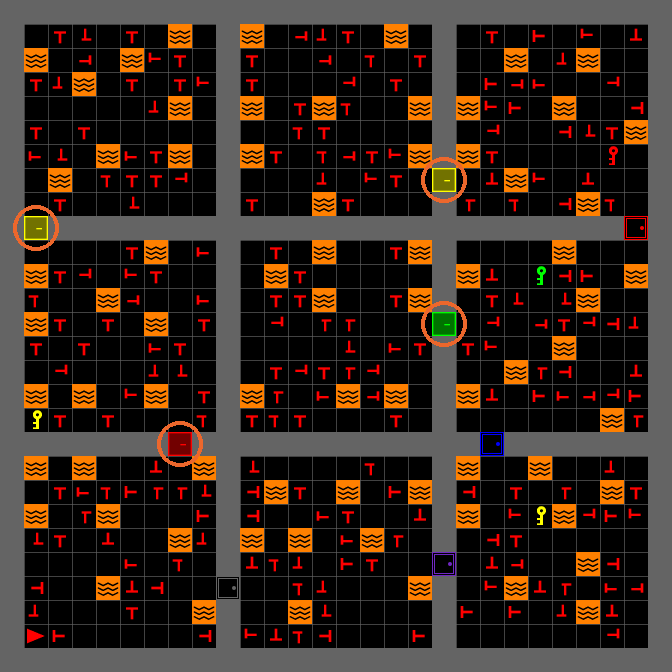
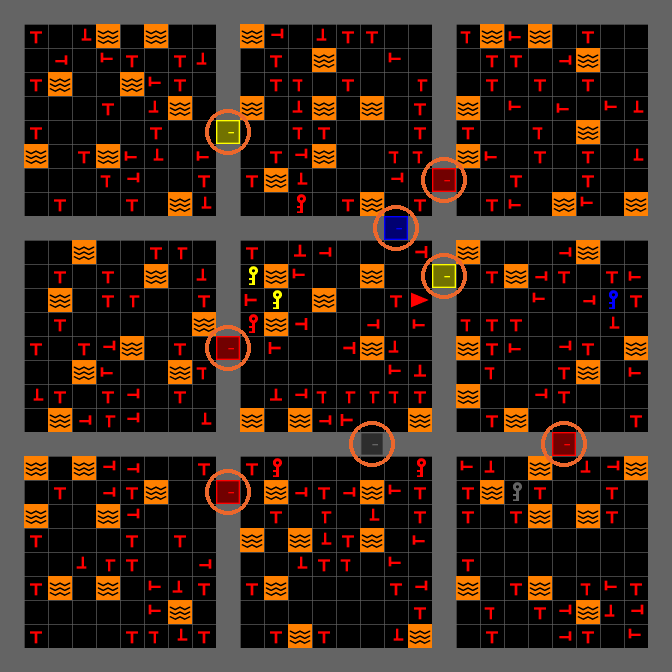
Step 5. Five levels, each changing one setting of the default, drawn with the whole-building camera.
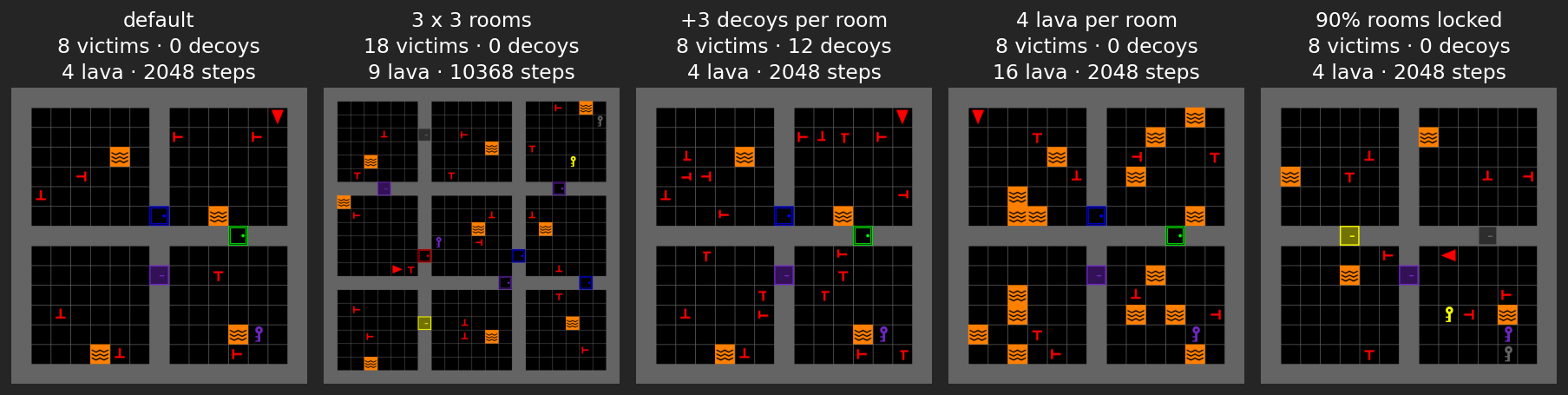
Rooms, decoys, lava and locked doors are numbers you choose.
Map 4.1 SAR 4.2 GUI 4.3 LLM 4.4 Sensing
Try it MOSAIC’s victim placer has no decoys. Add them with a small class of your own.
notebook · Step 5 abridged
class VictimsAndDecoys(VictimPlacer):
def __init__(self, num_real_victims=2, num_decoys=0):
super().__init__(num_real_victims)
self.num_decoys = num_decoys
def place_all(self, level_gen, rows, cols):
super().place_all(level_gen, rows, cols)
for i in range(rows):
for j in range(cols):
room = level_gen.get_room(i, j)
for _ in range(self.num_decoys):
x, y = random.choice(free_cells(room))
decoy = FakeVictim("left", "up")
level_gen.put_obj(decoy, x, y)Run Change DECOYS in the build-your-own cell and play.
Can you tell the decoys from the victims?
What it does
1 Real victims first The normal placer does its job
2 Then decoys Look-alikes in free cells of every room, never next to a door
3 One method A placer only has to implement place_all
Map 4.1 SAR 4.2 GUI 4.3 LLM 4.4 Sensing
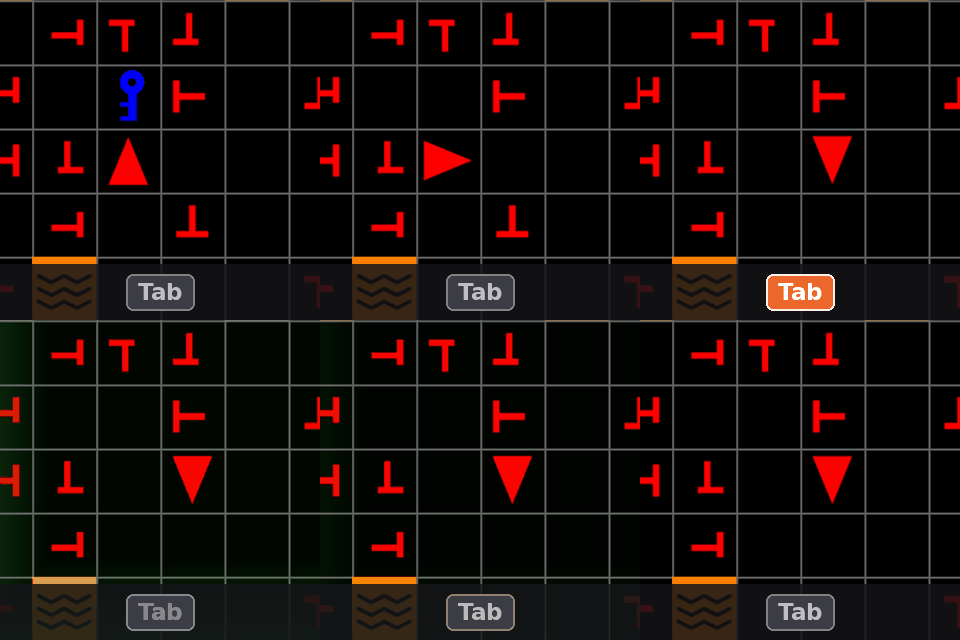
camera_strategy= sets the camera. One walk through a door, three cameras:
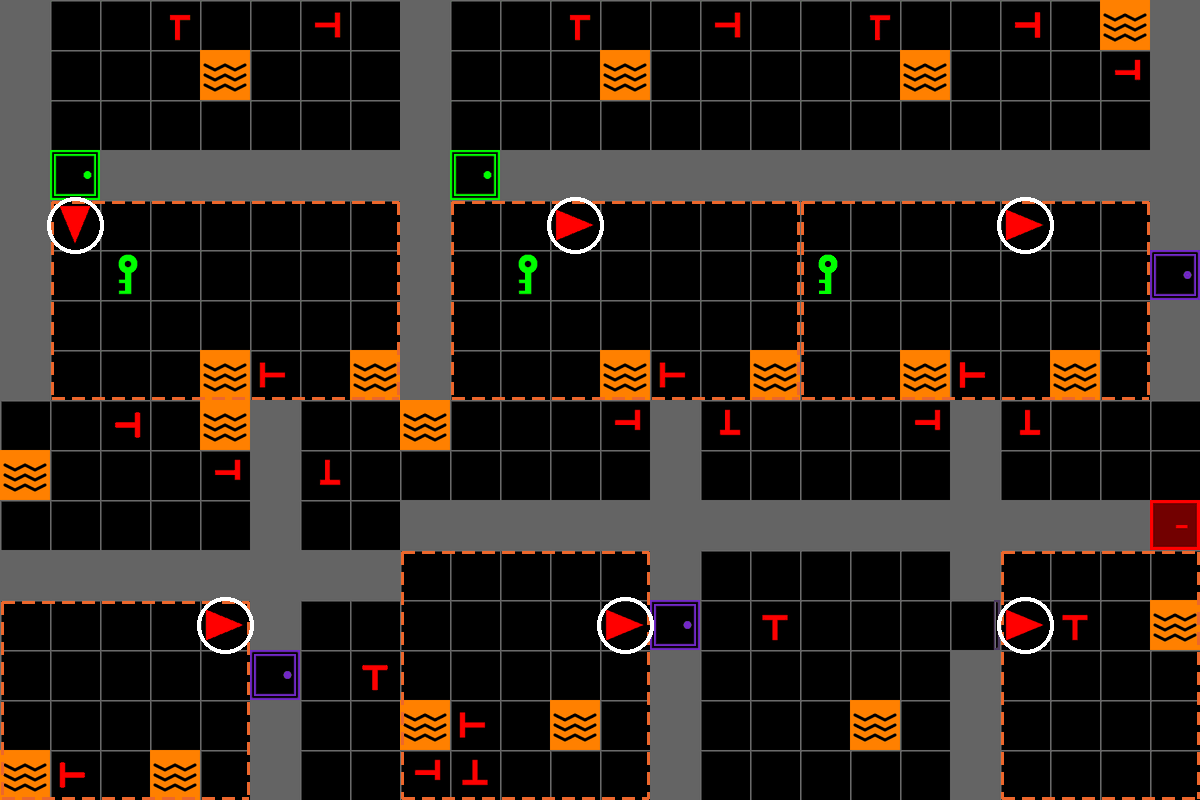
Edge-following
EdgeFollowCamera · scrolls with the agent
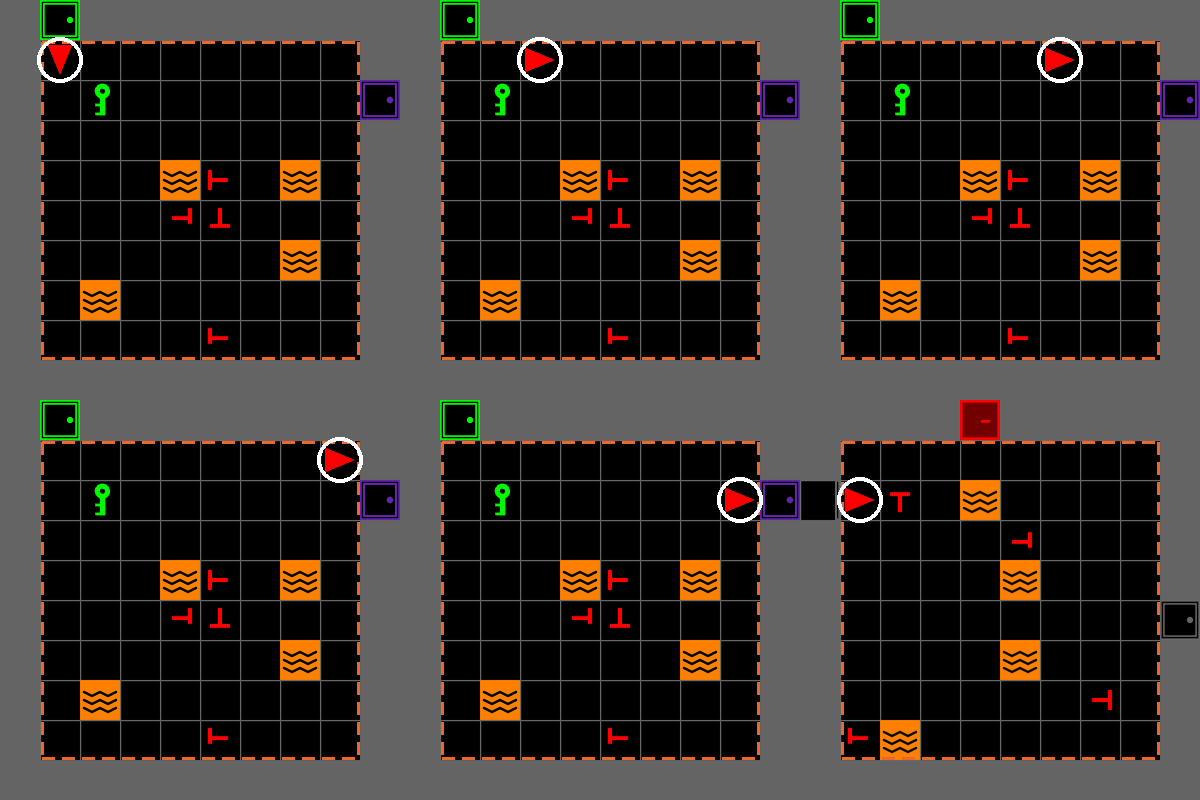
Whole room
AgentFOVCamera · the whole room
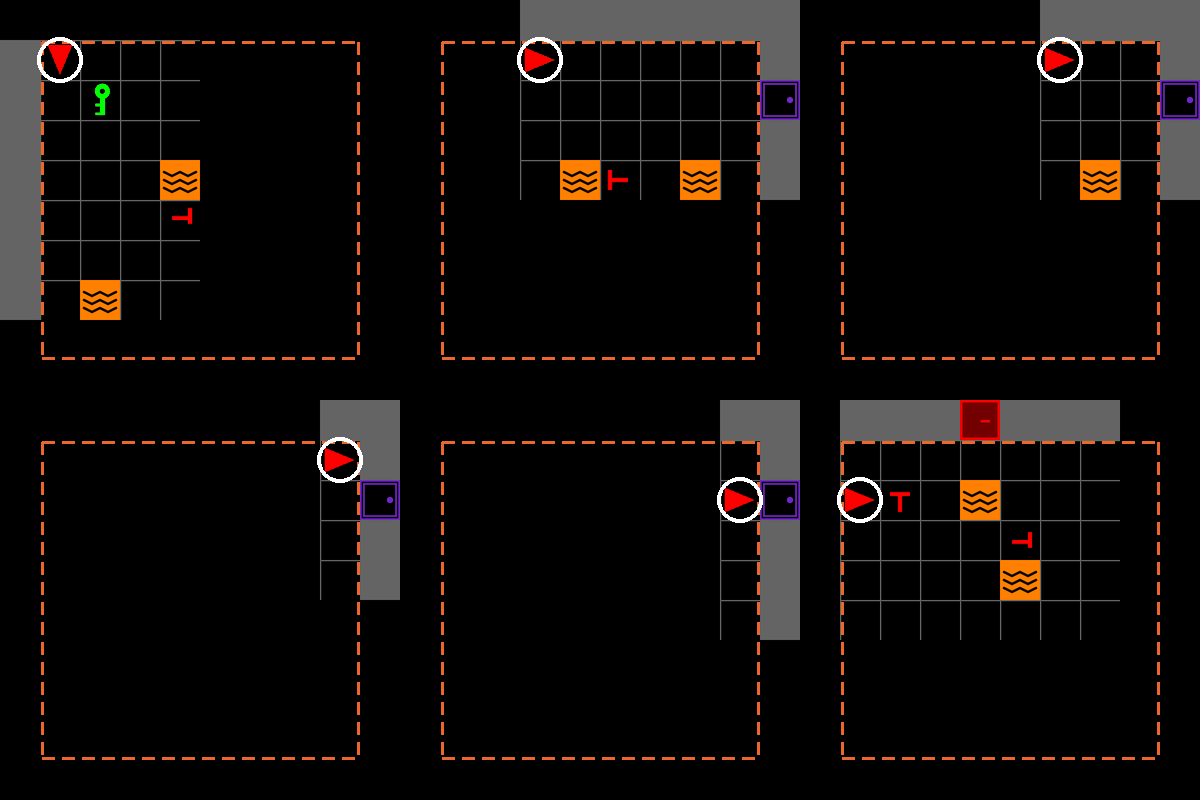
Forward cone
AgentConeCamera · only what is ahead
Agent same tile in all three · Room the agent’s room
Same task. The camera sets what the participant can see.
Map 4.1 SAR 4.2 GUI 4.3 LLM 4.4 Sensing
Try it Step 5: make rescuing a decoy cost 5 points instead of 1.
notebook · Step 5 the build-your-own cell, then make_level
Run Play, rescue a decoy, then press Stop.
What will the reward read?

Before · the default

After · fake_victim=-5.0
Same level, two minutes, one leaderboard.
notebook · Step 9 before you play, and when you stop
Run Step 9: set PREDICTION, run the cell, and play.
What score will you get?
What you will see
1 Your result Your score, and how close your guess was
2 The agent A random agent plays the same level 50 times: where do you rank?
3 The board Everyone’s scores, and who predicted their own best
A real victim is +1 and a decoy is −5: telling them apart is the whole game.
Map 4.1 SAR 4.2 GUI 4.3 LLM 4.4 Sensing
SAREnvGUI is the participant’s window. Notebook Step 4.
Three things to change
1 Time limit Appendix
max_time: in config.yaml
How much time pressure
2 Nudges Step 6
llm_nudge_interval
When the teammate speaks unasked
3 Browser view Notebook
play_mosaic(gui, width=…)
How large the picture is
Map 4.1 SAR 4.2 GUI 4.3 LLM 4.4 Sensing
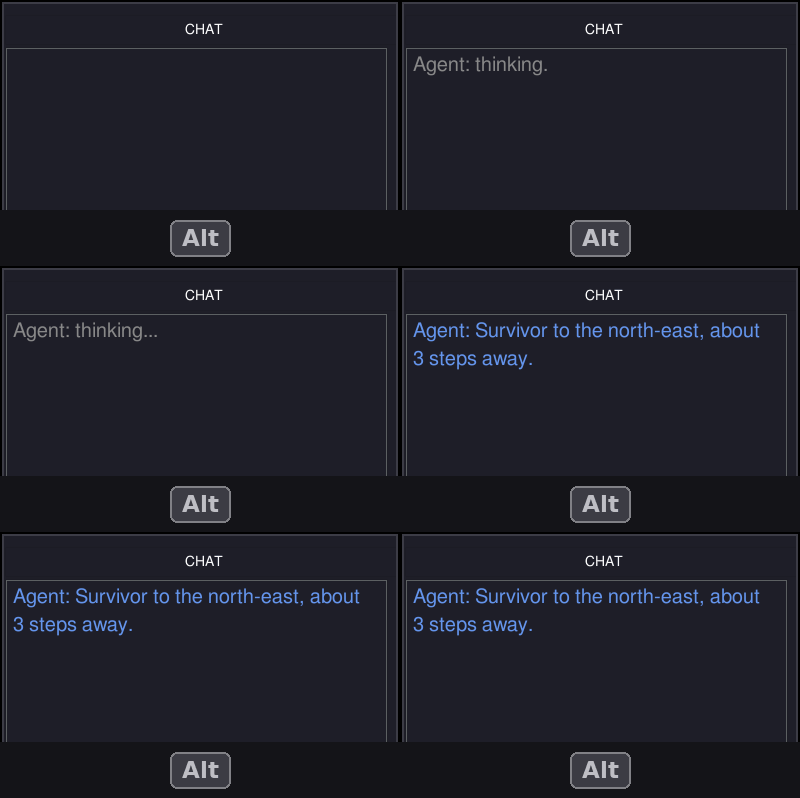
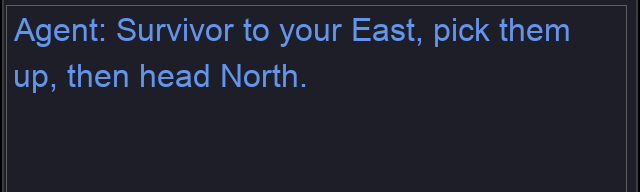
A teammate is any object with one method, query. Notebook Step 6. Today it is a placeholder.
notebook · Step 6 the contract

Today, after Q: the placeholder
Three things to change
1 The teammate Try it · next
llm_client=StandInTeammate()
Who answers Q
2 Prompt style Try it
prompt_type: "sparse" | "detailed"
How long the answers are
3 Nudges Notebook
llm_nudge_interval
When it speaks unasked
Map 4.1 SAR 4.2 GUI 4.3 LLM 4.4 Sensing
Try it Swap in a stand-in teammate that answers in the style its prompt asks for.
Map 4.1 SAR 4.2 GUI 4.3 LLM 4.4 Sensing
Try it Switch the prompt type, press Q again, and compare the answers.
Map 4.1 SAR 4.2 GUI 4.3 LLM 4.4 Sensing
Each step produces an observation. Step 3 shows it as you play; Step 7 records it with gaze on one clock.
obs → agent_x, agent_y, agent_dir, grid,
saved_victims, remaining_victims,
victim_health, step_count, …
+ action, reward
→ Step 7: one marker per action on LSL
Three things to change
1 Observation Step 3
player.obs
What each step holds
2 Recording Step 7
user.on_step = record_step
What each action writes
3 Sensors Demo · next
eye_tracker: source: live
Gaze on the game’s clock
Map 4.1 SAR 4.2 GUI 4.3 LLM 4.4 Sensing
Presenter demo A Tobii eye tracker streams gaze into the same recording, while a volunteer plays Step 7.
tobii_to_lsl.py on the laptop the tracker is plugged into
What lands next to the game data?
Watch for
1 Stream The gaze appears as TobiiEyeTracker, 60 Hz
2 Play A short mission in Step 7
3 Two streams, one clock TobiiEyeTracker (gaze) and MOSAIC-State (one marker per action), side by side in the recording
Map 4.1 SAR 4.2 GUI 4.3 LLM 4.4 Sensing
One recorded mission gaze and game on the same clock
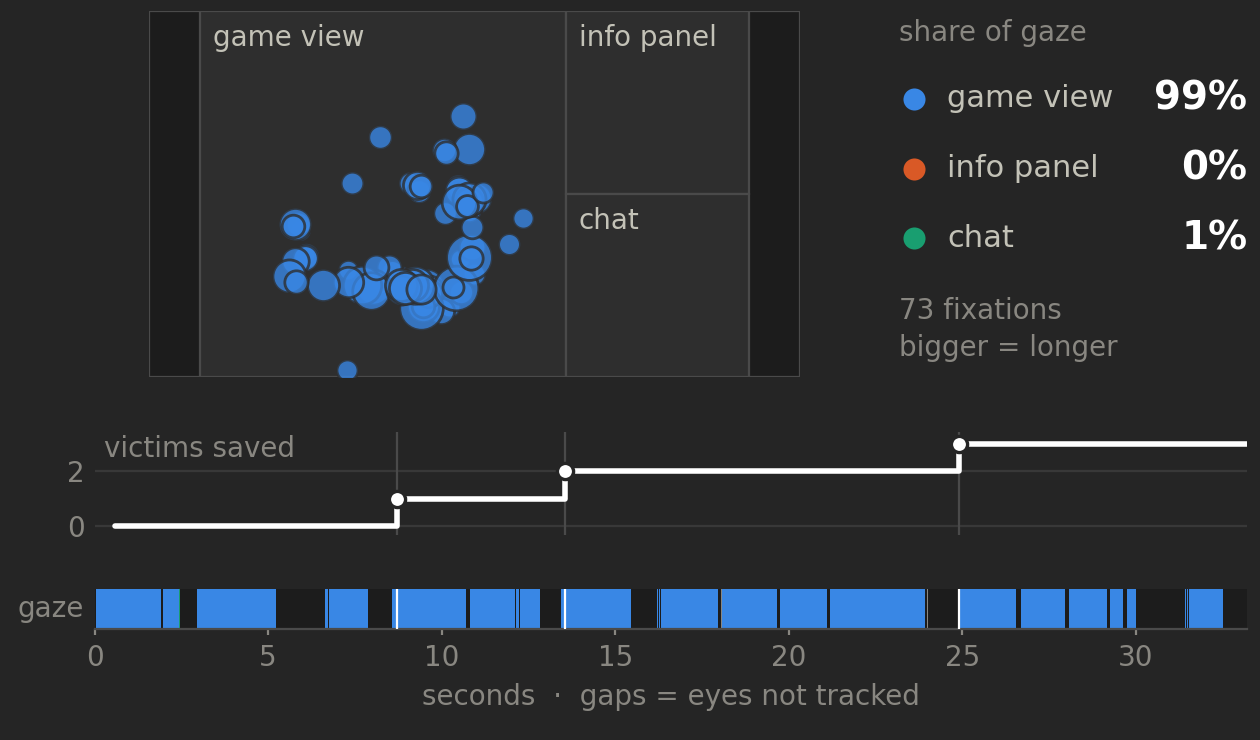
What to look for
Where Which part of the screen holds the gaze?
When What do the eyes do in the second after a rescue?
Advice Where does gaze go when the teammate replies?
Gaze and game share one clock, so every look lines up with what happened.
The parts you changed today, and where they live.
notebooks/ The tutorial notebook and its helpers. Copy it to start yours.
02_mosaic_human_ai.ipynb
config.yaml
live_play.py
lsl_tools.py
tobii_to_lsl.py
API play_mosaic · play_live · MarkerOutlet
composes
src/mosaic/core/ 4.1
Level generation and cameras
level.py
placers.py
camera.py
API Placer · CameraStrategy
src/mosaic/sar/ 4.1 4.4
The search-and-rescue task
env.py
placers.py
actions.py
objects.py
observations.py
API build_sar_env · RescueAction
src/mosaic/gui/ 4.2
What the participant sees
main.py
user.py
chat.py
info.py
feedback.py
API SAREnvGUI · EdgeVignette
src/mosaic/llm/ 4.3
The teammate contract
client.py
process_prompts.py
prompts.yaml
pathfinding.py
parser.py
API LLMClient · ask
What you configured today, put to work in a study of people and an LLM teammate.
LLM-Mediated Human-AI Interaction in Search and Rescue: Impact of Expertise on Attentional Allocation Elahe Oveisi · Hemanth Manjunatha
Task The search-and-rescue mission, with victims whose health runs down.
Teammate Two LLM teammates and a no-LLM baseline, three trials per participant.
Sensing A Tobii eye tracker and the game on one clock, through LSL.
Question Does guidance change where people look, and does expertise matter?

Monday, October 5 · 14:00–14:15 Grand C · Session MoA10 Scan for the talk’s slides
Come and hear what they found: Monday at 14:00, Grand C.

1 Human–AI Teaming What human–AI teaming question would you ask first, and what would you change in the rooms, victims or rewards to ask it?
2 An LLM as teammate What should it see, what should it be allowed to do, and how would you tell a good teammate from a fluent one?
3 Sense the human Which physiological signals, and which game events, would you use to close the loop?

Thanks!
Questions?
MOSAIC github.com/iHuman-Lab/mosaic
Appendix
More changes and reference
Each one is a line to change in the notebook
Everything here runs on a laptop too, with Python 3.10 or 3.11 and Git.
python -m pip install --upgrade pip
python -m pip install -e .
python -m pip uninstall -y pygame
python -m pip install --force-reinstall "pygame-ce>=2.5.2"
python -m pip install matplotlib scipy pandas pylsl pyxdf
python -m pip install ipywidgets ipyevents notebook
cd notebooks
python -m jupyter notebook 02_mosaic_human_ai.ipynb1 Clone and isolate
The code, and a private Python environment
2 Install MOSAIC
-e means your edits apply without reinstalling
3 Switch to pygame-ce
The interface needs it; plain pygame hides it
4 Notebook packages
For plots, the browser game, and the recording
5 Open the notebook
Start Jupyter from the notebooks folder
The notebook asks for the kernel: choose Python 3 (ipykernel). The full guide is SETUP.md in the tutorial repository.
Set the chance that a room is locked: 0.5 locks about half, 0.9 most.
Give the mission 2 minutes instead of 5.

iHuman Lab · Oklahoma State University